


One Click Videos · Built-in Image Generation
Imagine the image.
Ava brings it
into the story.
Advanced image generation. Automatic characters. Images sized for your video. All built into One Click Videos.
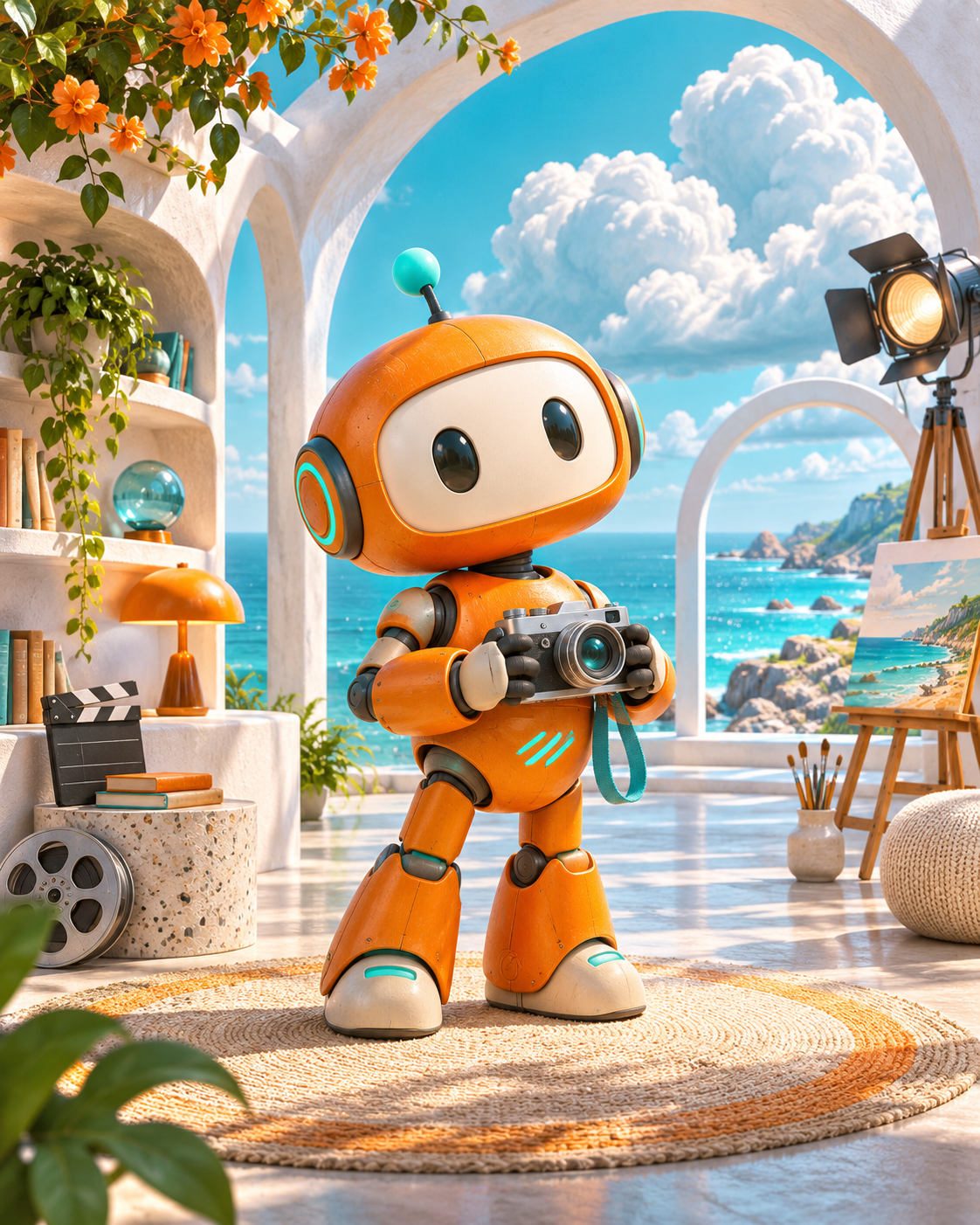
Advanced models. One creative workflow.
Three image families.
Built right in.
One Click Videos brings OpenAI’s GPT Image, Google’s Nano Banana and ByteDance’s Seedream into the same video creation workflow. Choose an available model to suit your creative direction.
GPT Image
Create new visuals and work from reference images as part of the video’s creative plan.
Nano Banana
Generate characters, settings and scene references with the available Nano Banana models.
Seedream
Bring another built-in image generation option to your characters and visual concepts.
Model versions and available settings are shown in the app. Image generation is connected to the video workflow, so you can develop the visuals where you develop the story.
Automatic character generation
Give your story
someone to follow.
Describe the people, original characters or mascots in your idea. The AI director can generate their visual references automatically, along with the environments they belong in.
Those images give the video model a concrete starting point for who appears and where the scene happens. Bring your own references when a specific person, product or place needs to guide the result.
For recurring content, saved character references help carry the visual identity into the next video.
Describe the role.
A curious orange robot exploring a seaside studio.
Create the references.
The character’s look. The scene’s setting. A shared visual direction.
Build the video.
Use those visual references to guide the generated scenes.
Automatic resolution switching
4K video.
4K image preparation.
Choose a supported 4K video workflow and image generation automatically adjusts to request 4K images. The visuals are prepared to match the video’s resolution and format.
One Click Videos handles the image sizing inside the production workflow, including portrait and landscape compositions.
Resolution support depends on the selected model. If a provider returns a smaller image or needs a fallback, the image is resized to fit the video. Image Studio and image-option previews have their own settings.
Built-in image quality assurance
A quality check.
Before the picture moves.
Image QA reviews generated visuals before they are used in the video workflow. It checks the image against the intended visual direction and can flag visible defects.
Check the image.
Review the generated result against its prompt and available reference material, including relevant character or product identity.
Refine when needed.
When a major visual problem is detected, the workflow can regenerate the image with corrective direction and compare another take.
Keep the story connected.
Character and environment references give later scenes a visual foundation, helping the director work toward continuity.
Review the final result.
Automatic QA adds a built-in review step. You can still check faces, hands, product details, text and scene consistency before sharing.
Your built-in image library
Keep the images.
Build on the idea.
Save the visual ingredients you want to use again. Your library keeps reusable images close to the next conversation with Ava.
Uploaded references are automatically analyzed and labeled with useful descriptions. The director can also name and save generated characters and other images it keeps for reuse.
People, original characters, products and places become creative references you can return to across new video ideas.
Ava connects the idea to your library
Describe the video.
Ava looks for the images.
Ava searches your saved image names and descriptions for people, products and places relevant to your video idea.
When matching references are available, Ava can offer them during the conversation. Pick the images you want to reuse, or add something new. That means less searching through files and less uploading the same references again.
One connected creative process
From the first image.
To the next story.
Start with the idea. Let the director create new visual references, use your existing images, or bring both together to guide the video.
- 01 · ImagineTell Ava what happens and who or what appears.
- 02 · CreateGenerate characters and scene images, or choose saved references.
- 03 · PrepareMatch the video format and run image quality checks.
- 04 · MakeBring the references into video generation and review the result.
Questions, answered
A little more
about the images.
The practical details behind generation, resolution, quality checks and reuse.
Which image generation models are built in?
One Click Videos includes OpenAI’s GPT Image, Google’s Nano Banana and ByteDance’s Seedream. Check the app for the current model versions and the options available in your chosen workflow.
Can One Click Videos generate characters automatically?
Yes. The AI director can create visual references for the characters and environments described in your video idea. You can also supply your own references or choose relevant saved images.
Does selecting a 4K video also change image generation?
Yes, in supported 4K video workflows. Image generation requests 4K output and prepares the images for the video frame. Provider support varies; a smaller or fallback result may be resized. Separate Image Studio and image-option previews do not automatically become 4K previews.
What does built-in image QA do?
It reviews generated images against the prompt and reference material, flags visual issues and can trigger another generation when it detects a major defect. Automatic checks help with review, and you should still inspect the finished result.
Can I keep and reuse images?
Yes. The built-in library stores reusable image assets. Uploaded references receive automatic analysis and labels, and generated images selected for reuse can be named and saved by the director.
How does Ava find relevant images in my library?
Ava compares the video idea with saved image names, descriptions and subjects, then offers relevant references when there is a match. You can choose the saved images that fit your brief or upload new ones.
Can I use my own product photos or character images?
Yes. Bring reference images into the workflow or choose them from your library. Clear references help guide recognizable people, products and places. You can combine them with new generated visuals as appropriate for your idea.
How do I get started?
Start a Free Trial, describe a video idea to Ava and choose the image sources you want to use. You can also explore the built-in image tools. See plans and pricing for current subscription details.
Built into One Click Videos by JEMSU
Your next video
starts with an idea.
Create the characters. Prepare the images. Keep your favorites ready for the next story.